User guide
METAWAVE LMS User Guide
This guide explains how visitors and registered learners can use the METAWAVE e-learning platform, access a course, complete modules and follow their progress.
Open the platform
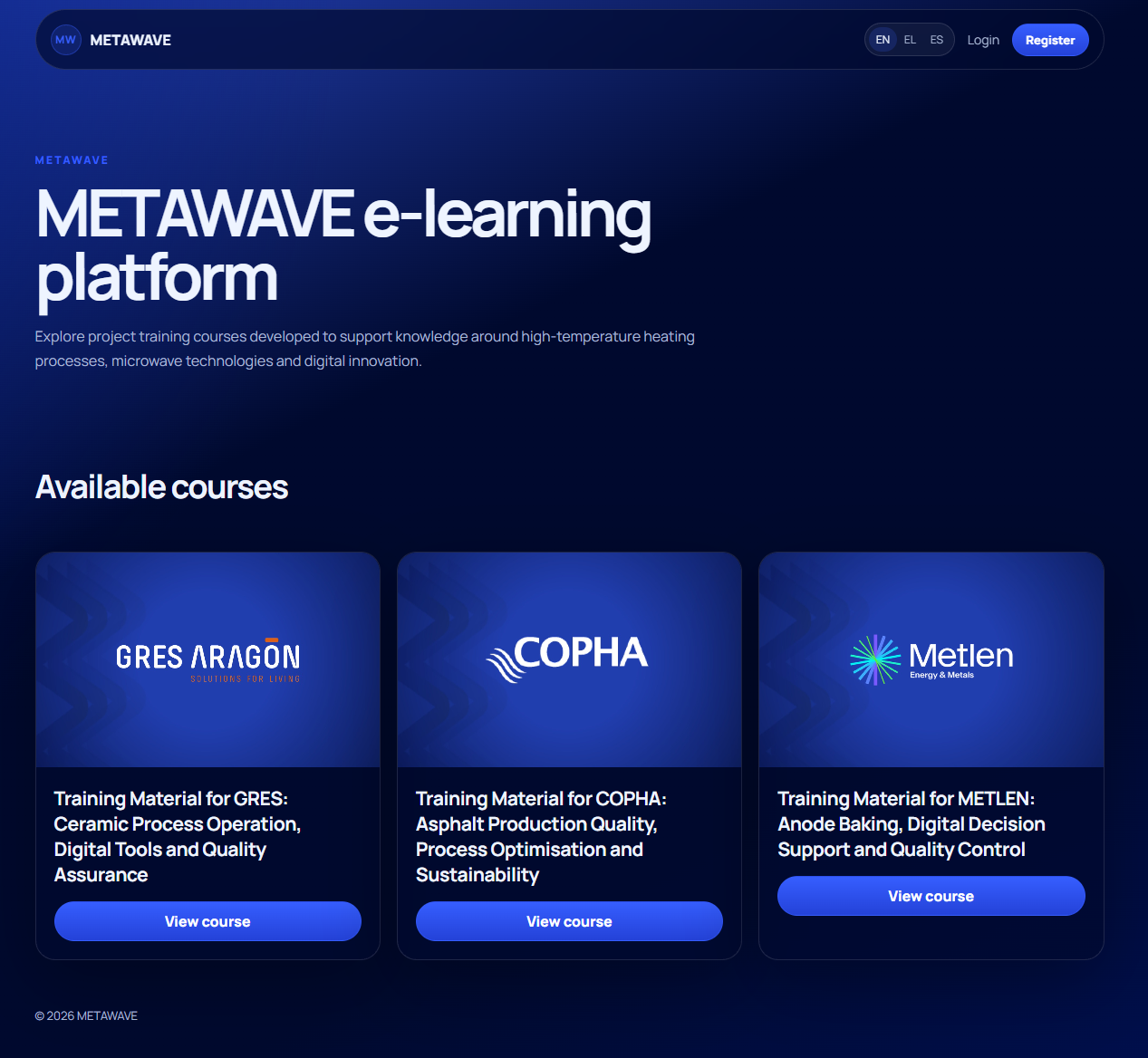
When you open the METAWAVE e-learning platform, you will see the homepage, the available language options, and the available training courses.
Use the language selector at the top of the page to switch between the available languages.
View available courses
The homepage displays the available METAWAVE training courses as course cards.
- Find the course you want to explore.
- Select View course.
- You will be transferred to the public course page.
Open a course page
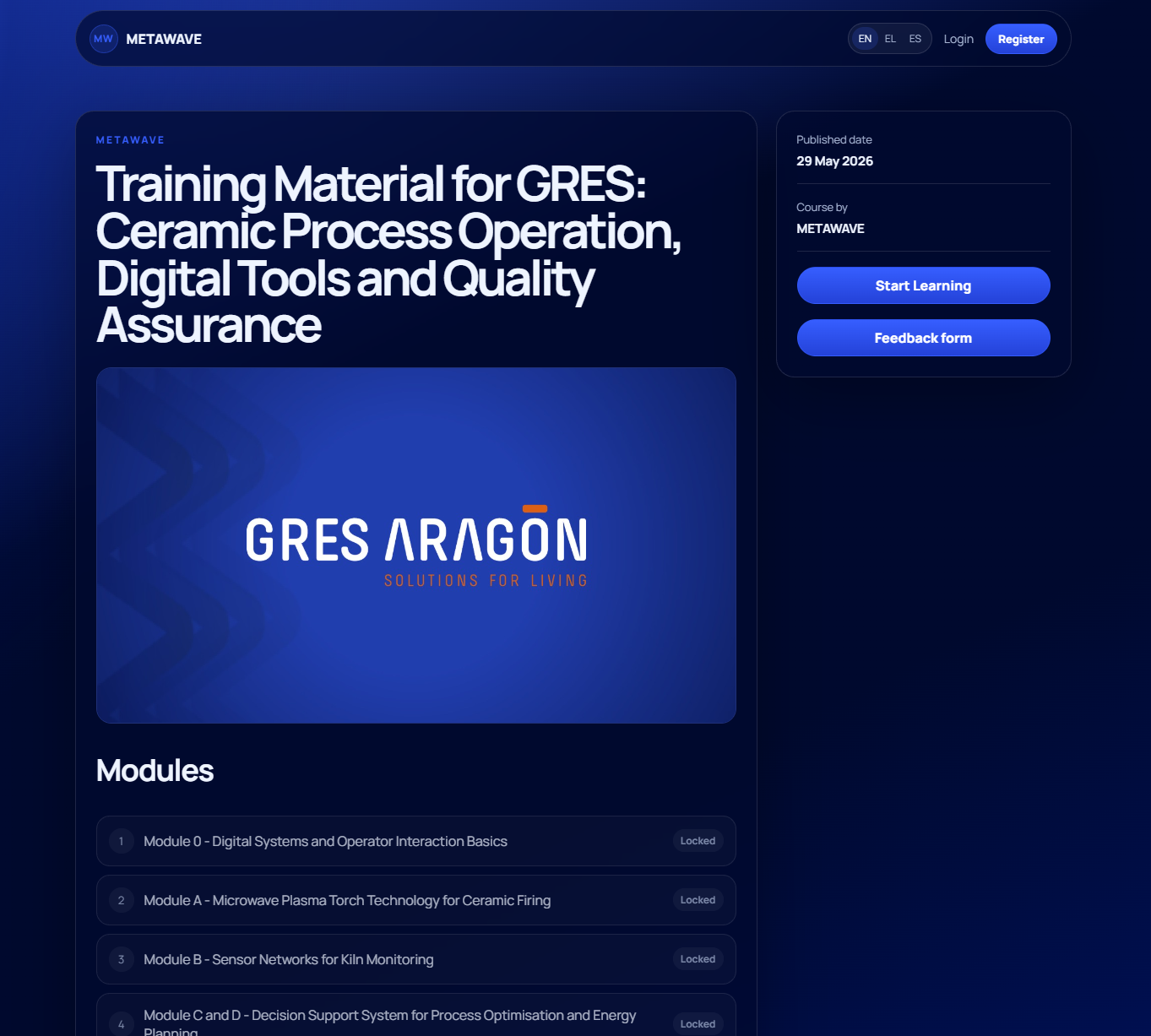
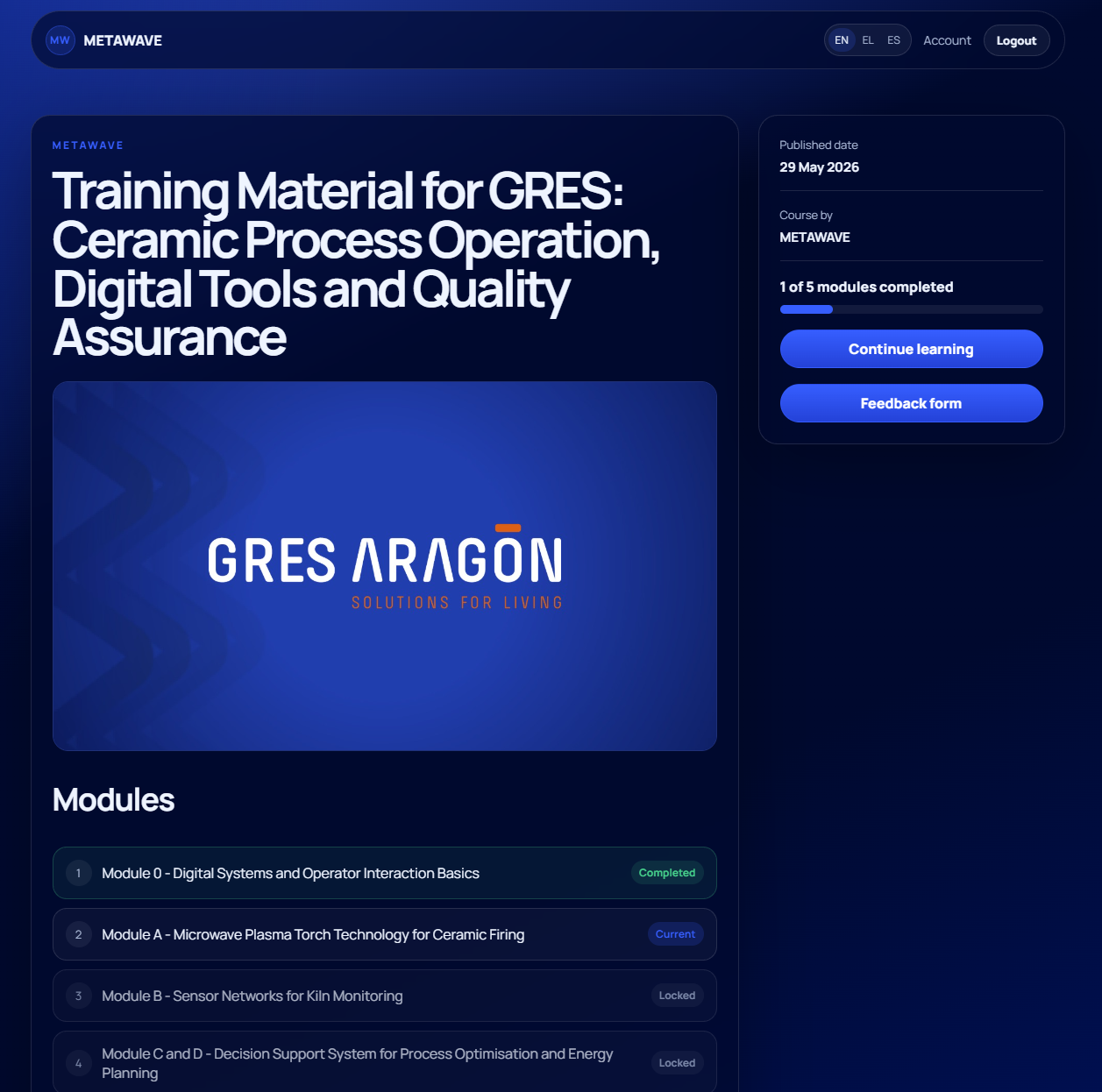
The public course page includes the course title, image, published date, provider information, and the list of course modules.
Before registration, the modules are visible but locked. To access the course material, select Start Learning.
Log in
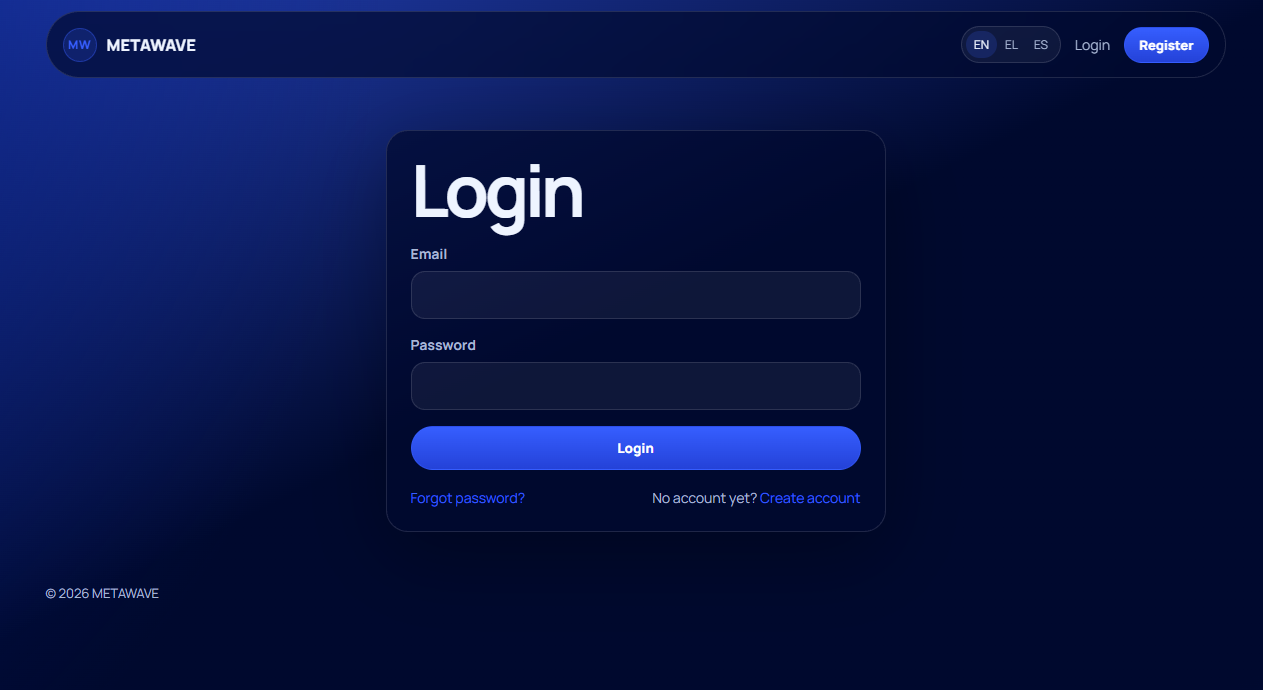
If you already have an account, use the login page.
- Enter your email address.
- Enter your password.
- Select Login.
If you cannot remember your password, select Forgot password? and follow the reset instructions.
Register
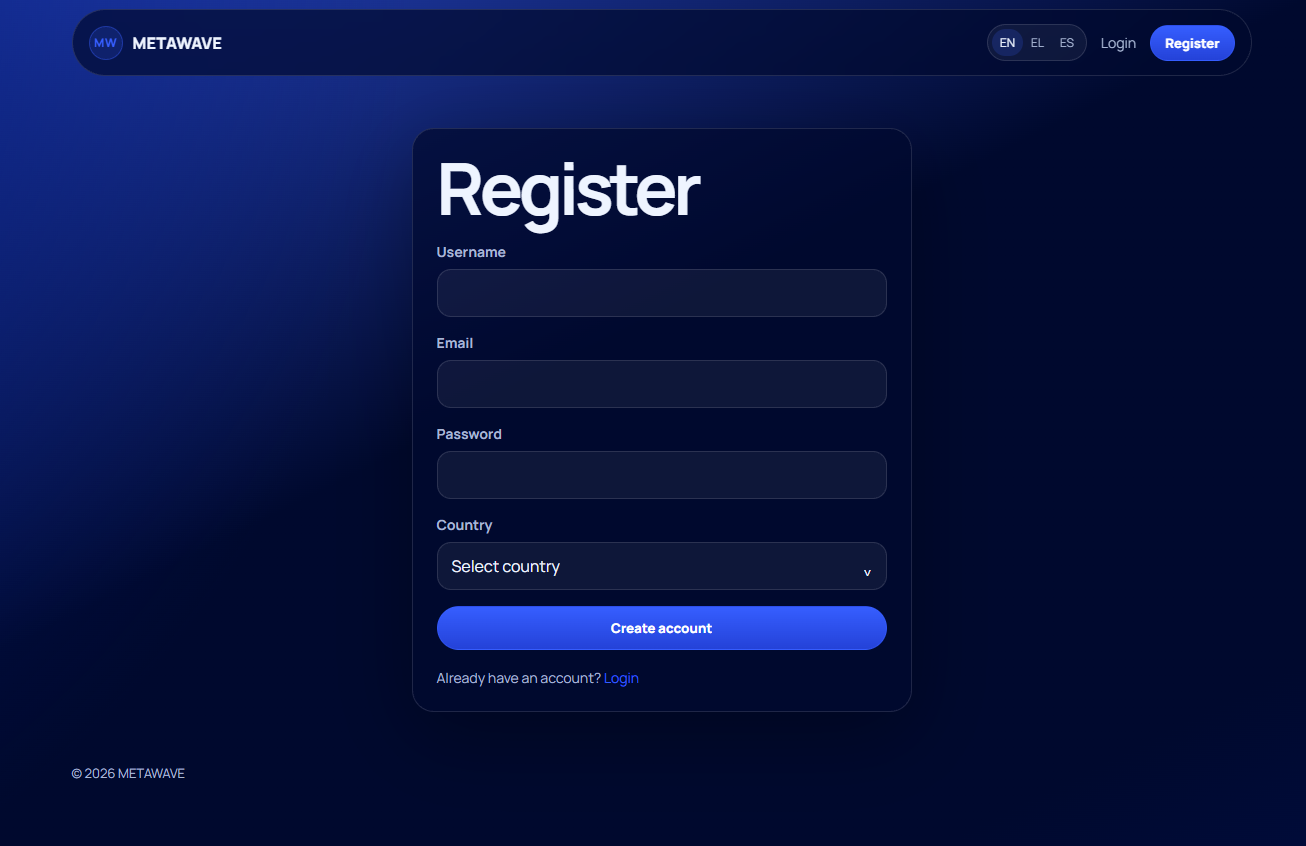
If you do not have an account, create one from the registration page.
- Enter a username.
- Enter your email address.
- Create a password.
- Select your country from the dropdown list.
- Select Create account.
After registration, you will be able to access the course you selected.
Start or continue learning
After logging in, your course page shows your progress and a Continue learning button.
The progress indicator shows how many modules you have completed.
Use the lesson page
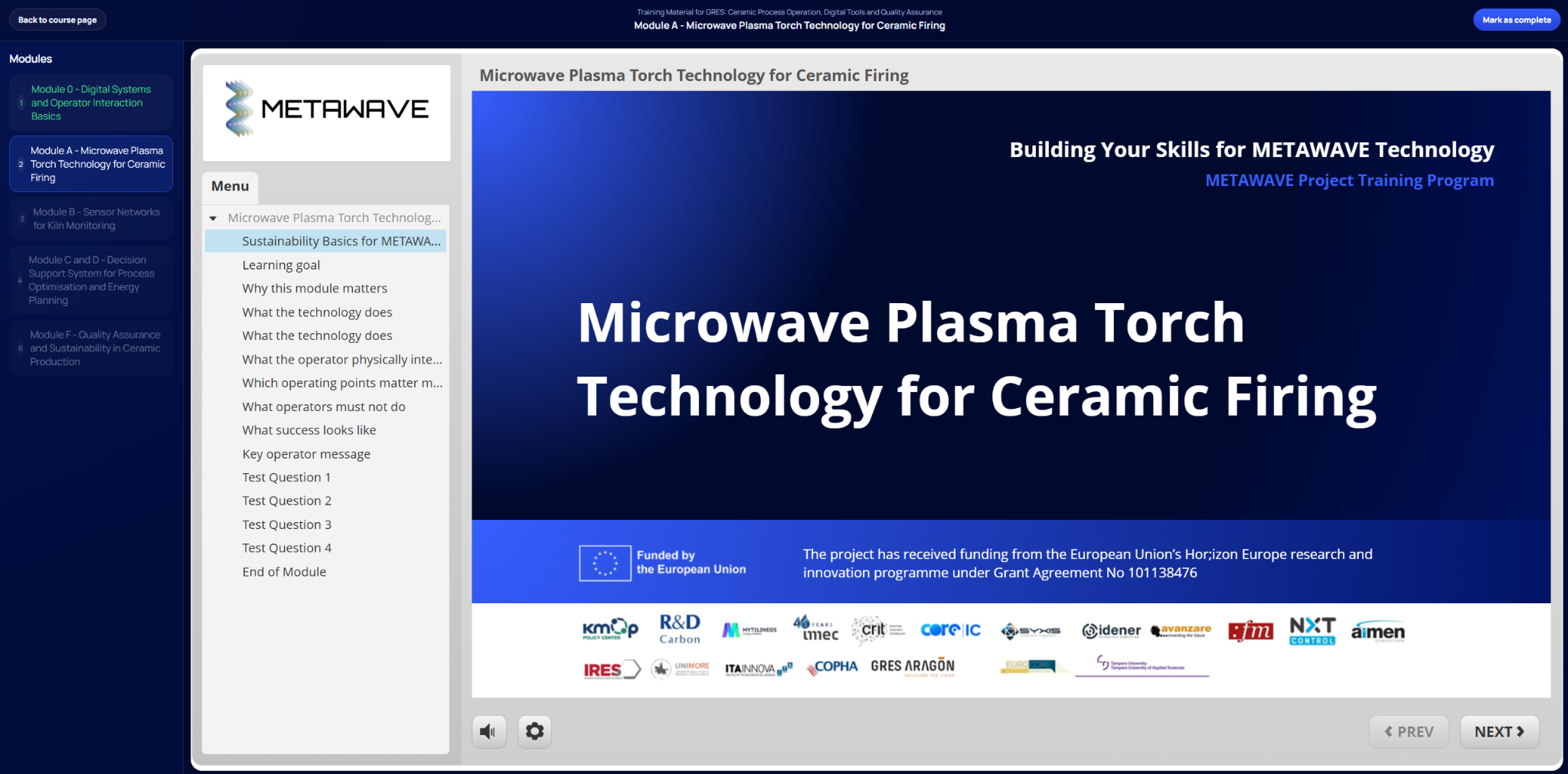
The lesson page is displayed in spotlight mode, so the main website header is hidden and the learning material has more space.
At the top of the page, you can use:
- Back to course page to return to your course overview.
- Mark as complete when you finish the module.
The module list appears on the left, while the learning material appears in the main area.
Complete modules
When you finish a module, select Mark as complete.
The platform will save your progress and automatically move you to the next available module.
When all modules are completed, you will return to the course page and see your completed progress.
Send feedback
Each course page includes a Feedback form button.
Select this button to open the feedback form in a new browser tab. The feedback form may be different depending on the course and selected language.
Manage your account
After logging in, you can open your account page from the top menu.
From your account page, you can view your enrolled course and progress, change your email, change your password, or request account deletion.